Marvel Rivals Adds HD Texture Pack Toggle on Steam, NetEase, and Epic to Slim Down Install Size
Marvel Rivals has rolled out an optional High-Resolution Resource Pack delivered as a DLC, letting players choose between full visual fidelity and a smaller install footprint. The toggle is live now on the NetEase Loading Bay launcher and Steam, with Epic Games Store support coming soon.
Marvel Rivals players grappling with shrinking SSDs just got a quality-of-life win. NetEase has split the game's art assets into separate high-resolution and low-resolution resource packs, served through each storefront's DLC system, so the high-fidelity textures become an opt-in download rather than a mandatory chunk of the install.

The new system is rolling out across NetEase Fever Games (Loading Bay), Steam, and the Epic Games Store — the latter still tagged as "coming soon." Anyone who already owns Marvel Rivals can flip the DLC on or off based on their hardware and storage situation, swapping between a sharper-looking install and a leaner one without losing progress.
Key Details
- What: Optional HD Texture Pack DLC for Marvel Rivals
- Where: NetEase Loading Bay launcher, Steam, Epic Games Store (soon)
- When: Live as of May 15, 2026
- Cost: Free — included with the base game
- Requirement: Game must be updated to the latest version
Why a Texture Toggle Matters for Marvel Rivals
Hero shooters tend to be storage hogs, and Marvel Rivals — with its growing roster of stylised heroes, frequent seasonal map drops, and high-detail cosmetics — has been no exception. By offloading the highest-resolution art to a separate DLC, NetEase is borrowing a trick from titles like Call of Duty and Modern Warfare, where pulling the HD pack can free up many gigabytes of disk space at the cost of slightly softer in-game visuals.
NetEase is upfront about the trade-off: the low-resolution pack "will reduce the overall installation size to a certain extent," but "visual fidelity may be reduced in some cases." In other words, players on tight SSDs, handheld PCs like the Steam Deck and ROG Ally, or older rigs can keep playing without dedicating prime drive space to 4K-grade textures they may not even render at native quality.
How to Toggle the HD Pack on NetEase Loading Bay
On NetEase's first-party launcher, the choice happens before you download. A new version selection menu appears to the left of the download button.

Click the menu to view the available version options — Game Only, or Game Only + HD assets.

Already installed the game and chose Game Only? Once the download completes the button switches to Play, and a small prompt appears in the menu on the right side of that button.
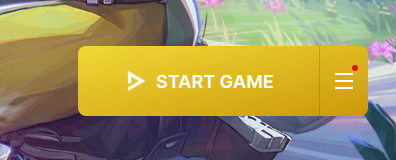
Open that side menu and you'll see Download HD assets.
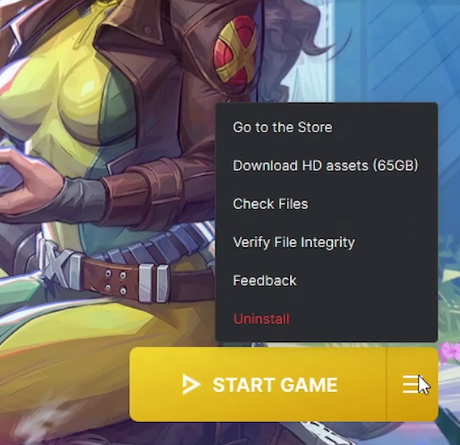
Pick that option and the button drops back into download mode. Once it finishes you're returned to Play, this time with the high-resolution pack active.
How to Toggle the HD Pack on Steam
On Steam, the high-resolution DLC is enabled by default for fresh installs — so most players will get the full-fat version automatically. To start in low-res mode (or switch later), you'll work through the Steam Library's properties panel.
For a first-time install where you want the slimmer build:
- Open your Steam Library.
- Right-click Marvel Rivals.
- Select Properties.
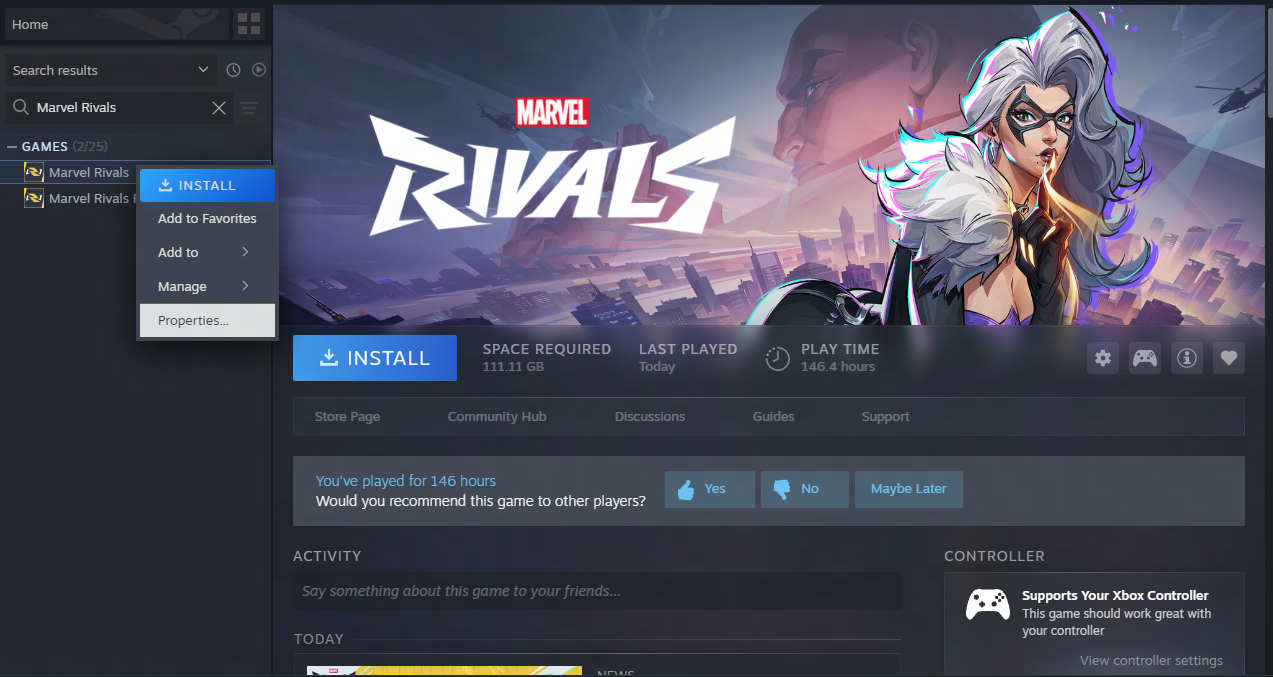
From the Properties window, head to the DLC tab and uncheck the high-resolution pack to switch over to the low-resolution version.
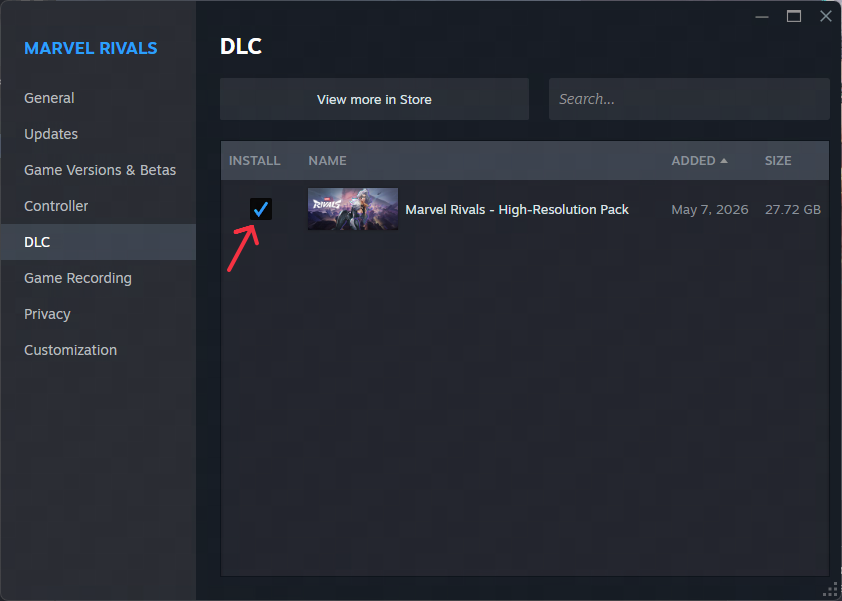
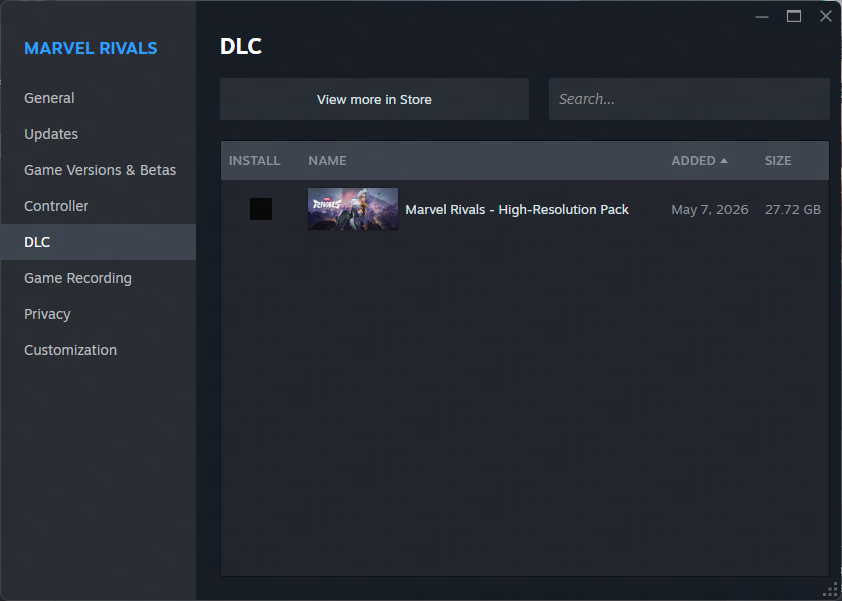
If you change your mind later and re-tick the box, Steam will start downloading the high-resolution resource pack automatically.
For players who already have Marvel Rivals installed on Steam, the workflow is identical:
- Open your Steam Library.
- Right-click Marvel Rivals.
- Select Properties.
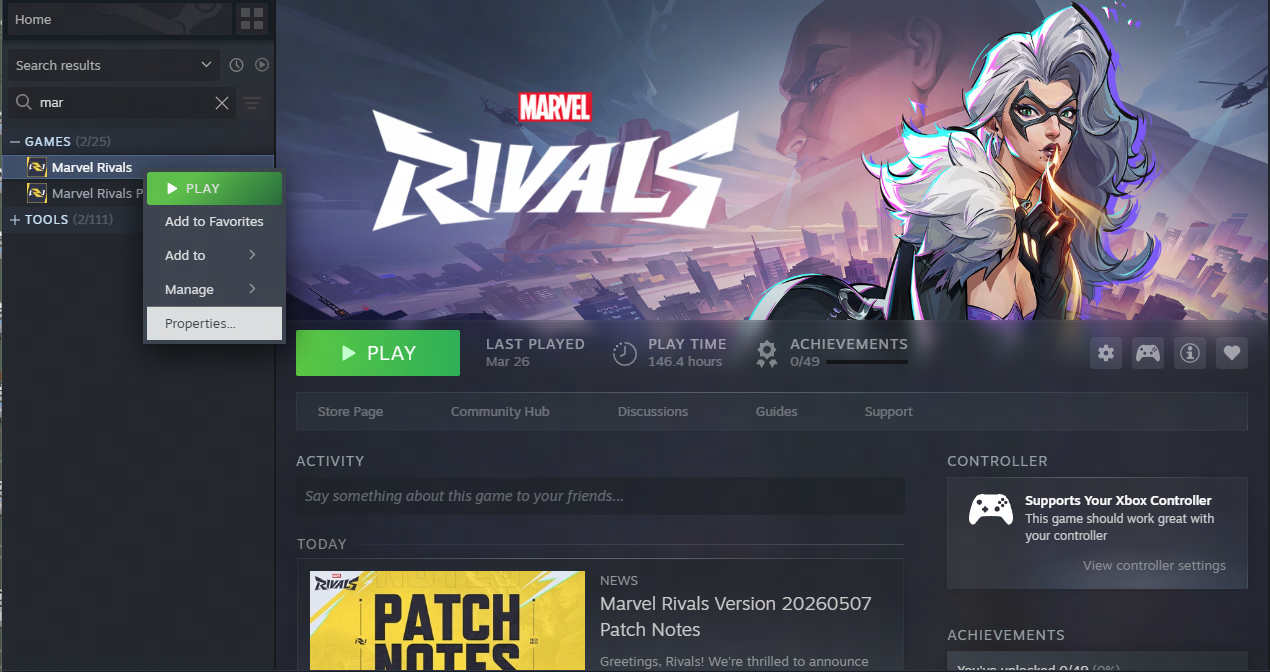
Then under the DLC tab, check Marvel Rivals High-Resolution Resource Pack to enable the high-resolution textures.
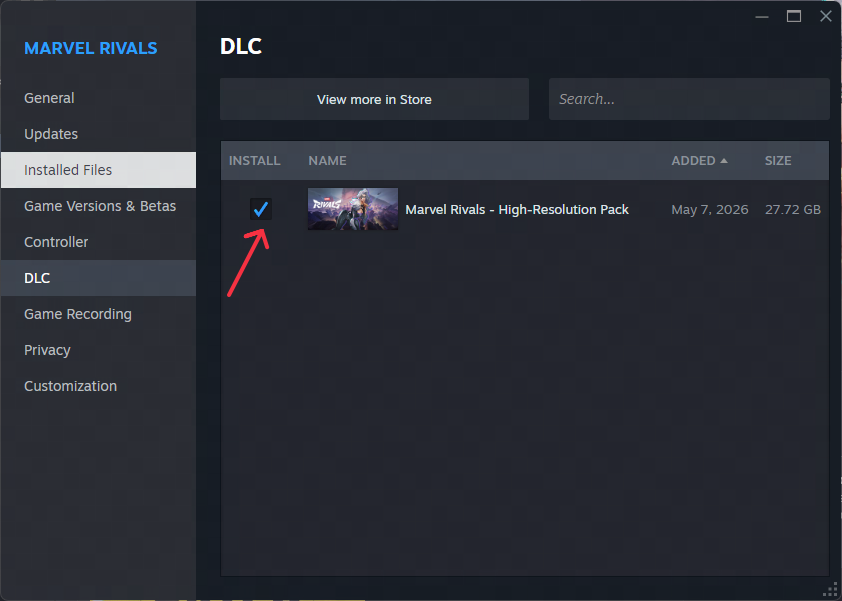
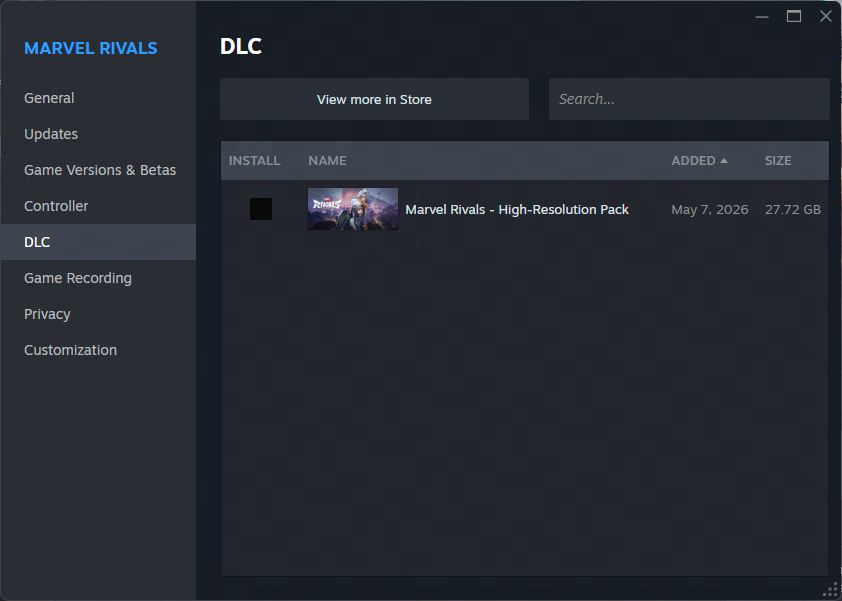
Uncheck the same box to revert to the low-resolution pack at any time. As with the first-time install path, re-enabling the DLC triggers a fresh download of the high-resolution assets.
How It Works on the Epic Games Store
Epic support is on the way but not live yet. When it lands, the DLC will be enabled by default for all new downloads.

Players who already have Marvel Rivals through Epic will manage the pack from the launcher's standard options menu:
- Open your Epic Games Library.
- Click the "…" button next to Marvel Rivals.

From there, select Options, then enable or disable Marvel Rivals HD Texture Pack to swap between resource packs.

What This Means for Marvel Rivals Players
For most desktop players running on a 1440p or 4K monitor, the default HD pack will remain the right pick — Marvel Rivals' painterly comic-book look benefits from the extra texture detail, especially on close-up hero portraits and finishers. But for handheld and laptop players, sub-1080p displays, or anyone juggling multiple live-service installs on a single drive, the low-resolution pack is a welcome way to keep Marvel Rivals on the rotation without an SSD upgrade.
"After the DLC is enabled or disabled, the game will automatically load the corresponding resources. If you encounter any issues during the switching process, please contact us through the official support channels." — Marvel Rivals Development Team
The studio is asking players to make sure their install is fully patched to the latest version before flipping the toggle, and to reach out to NetEase support if anything goes sideways during the swap. With Epic support still pending and a fast-growing seasonal pipeline ahead, expect this DLC split to make future Marvel Rivals updates a little less painful on storage budgets — a small but very player-friendly piece of housekeeping from the dev team.